My Account
The My Account section allows you to manage your profile, users, and access all your client space management features.
Accessing My Account
Click on your name or avatar in the top right corner of the screen, then select "My Account" or "Client Space".
Available Tabs
Your client space is organized into several tabs:
| Tab | Description |
|---|---|
| Information | Your organization data |
| Sites | Management of your sites |
| Equipment | Management of your equipment |
| Users | Access management |
| Subscription | Current plan and renewal |
| Licenses | Equipment licenses |
| Sensors & Outputs | Custom types |
| Billing | Payment history |
Information
The Information tab displays your organization data:
- Organization name
- Address
- Referring installer (if applicable)
- Account creation date
Edit Information
- Click on "Edit"
- Update the information
- Save
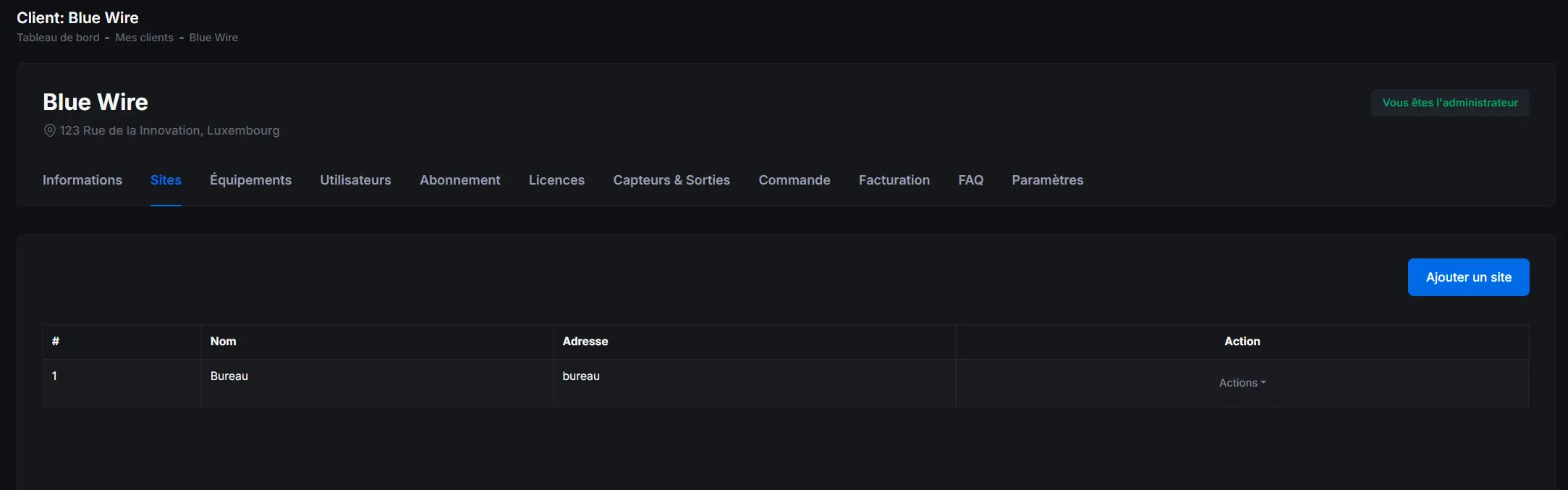
Site Management
View and manage all your sites:
- List of all sites
- Number of equipment per site
- Actions: Edit, Delete
Create a Site
- Click on "New Site"
- Fill in the information (name, address, description)
- Save
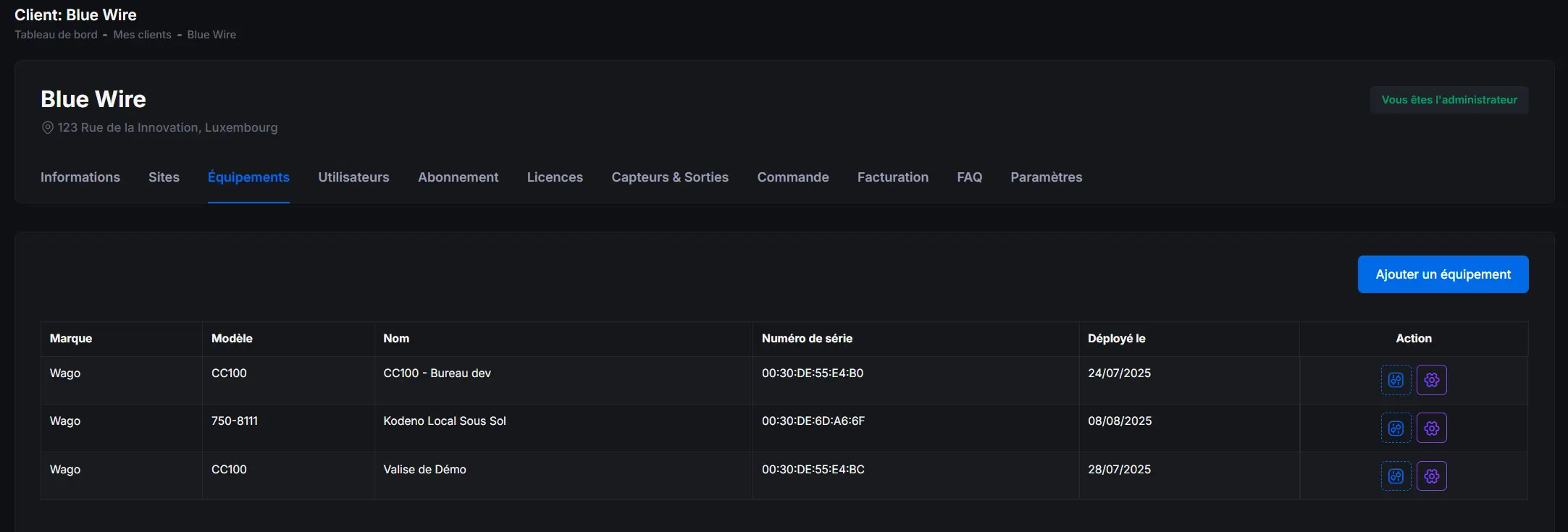
Equipment Management
View and manage all your equipment:
- List of all equipment
- Connection status
- Associated site
- License status
Add Equipment
- Click on "New Equipment"
- Fill in the information (name, serial number, type)
- Associate it with a site (optional)
- Save
User Management
Manage people with access to your Kodeno space.
Available Roles
| Role | Permissions |
|---|---|
| Administrator | Full access, user management |
| User | Read/write access to equipment |
Add a User
- Click on "New User"
- Fill in the information:
- First name and last name
- Email address
- Role
- Save
The user will receive an invitation email.
Edit a User
- Locate the user in the list
- Click on "Edit" (pencil icon)
- Modify the information
- Save
Delete a User
- Locate the user in the list
- Click on "Delete" (trash icon)
- Confirm deletion
Deleting a user is permanent and immediately removes their access to the Kodeno platform.
Subscription
View your current subscription:
- Current plan (Free, Basic, Premium)
- Renewal date
- Remaining days
- Price
Upgrade Subscription
- Click on "Upgrade Subscription"
- Choose the desired plan
- Proceed to payment
Licenses
Equipment licenses allow you to use your equipment:
- List of active licenses
- Associated equipment
- Expiration date
Purchase a License
- Click on "Purchase License"
- Select the number of licenses
- Proceed to payment
Sensor & Output Types
Manage custom types for your organization:
- List of sensor types
- List of output types
- Create, edit, delete types
See Sensors & Outputs for more details.
Billing
View your payment history:
- List of invoices
- Payment dates
- Amounts
- Download invoices
Security
Change Password
- Click on "Change Password"
- Enter current password
- Enter new password
- Confirm new password
- Save
Two-Factor Authentication (2FA)
Enable two-factor authentication for enhanced security:
- Access security settings
- Enable 2FA
- Scan the QR code with your authentication app
- Enter the verification code
- Save your recovery codes
We strongly recommend enabling two-factor authentication to protect your account.