S7 Configuration (Siemens)
The S7 Configuration tab allows you to connect your Kodeno equipment to a Siemens S7 controller to read variables.

Optional Module
This feature requires the "S7 Connector" module to be enabled in equipment settings.
What is S7 Connection?
S7 connection allows your Kodeno equipment to:
- Connect to a Siemens S7-300, S7-400, S7-1200, or S7-1500 controller
- Read variables from data blocks (DB)
- Display values in real-time in Kodeno
Accessing S7 Configuration
- Access your equipment page
- Click on the "S7 Configuration" tab
Prerequisites
Make sure the S7 module is enabled in the Settings tab before accessing this configuration.
Connection Settings
Network Information
| Field | Description |
|---|---|
| IP Address | Siemens controller IP address |
| Rack | Rack number (usually 0) |
| Slot | CPU slot number (usually 1 or 2) |
Connection Test
- Enter connection settings
- Click on "Test connection"
- A message indicates if connection is successful
Configure Variables
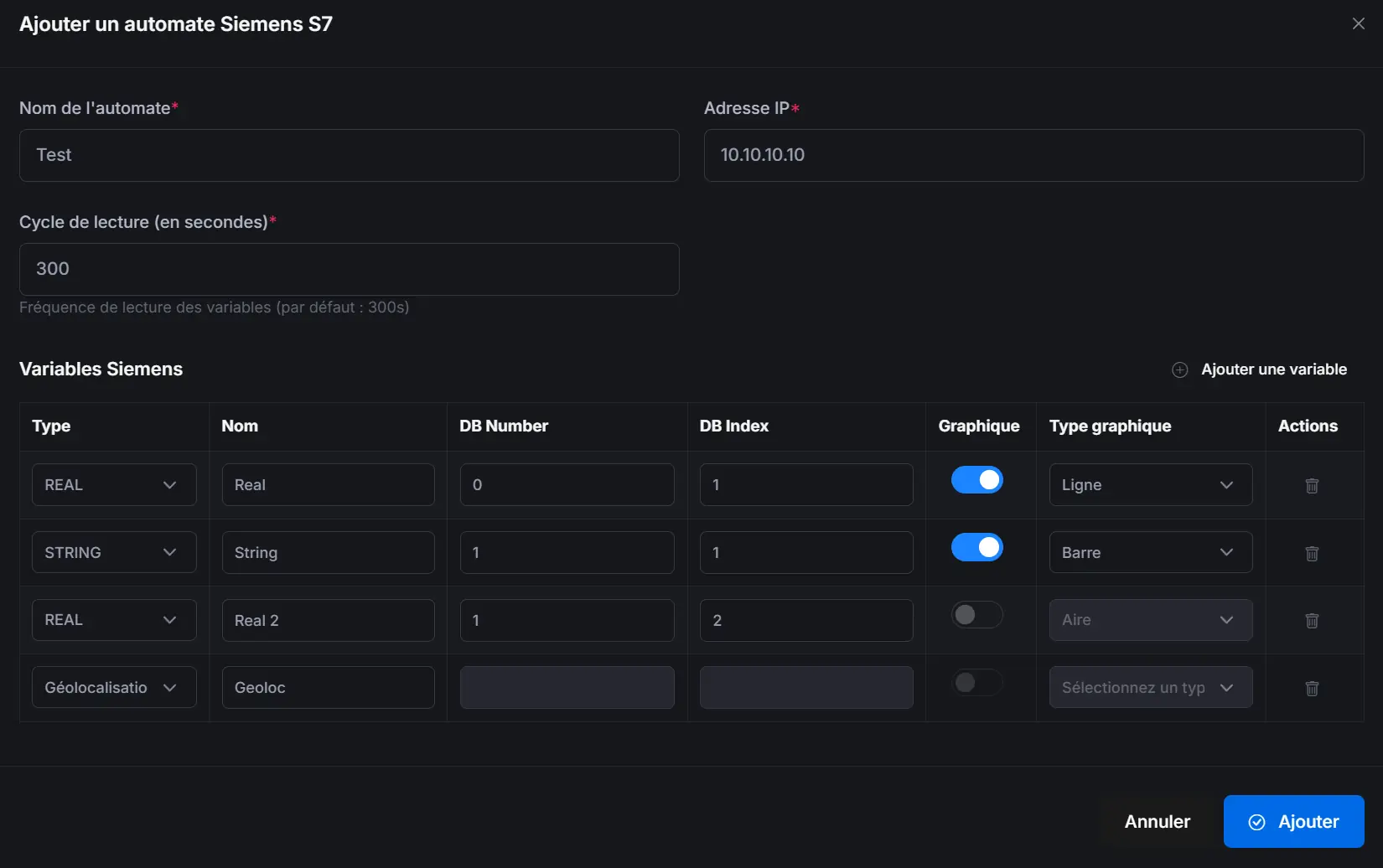
Add a Variable
- Click on "Add variable"
- Fill in information:
| Field | Description |
|---|---|
| Name | Variable identifier |
| DB Number | Data block number |
| Offset | Position in DB (in bytes) |
| Data Type | BOOL, INT, REAL, DINT, etc. |
| Bit | Bit position (for BOOL type) |
Supported Data Types
| Type | Description | Size |
|---|---|---|
| BOOL | Boolean (true/false) | 1 bit |
| BYTE | Unsigned byte | 1 byte |
| INT | Signed integer | 2 bytes |
| DINT | Double signed integer | 4 bytes |
| REAL | Floating point number | 4 bytes |
| STRING | Character string | Variable |
Configuration Example
To read temperature stored in DB10 at offset 4 in REAL format:
- Name: Oven temperature
- DB Number: 10
- Offset: 4
- Type: REAL

Manage Variables
Modify a Variable
- Click on the pencil icon next to the variable
- Modify settings
- Save
Delete a Variable
- Click on the trash icon next to the variable
- Confirm deletion
Reorganize Variables
Use drag-and-drop to reorganize the display order of variables.
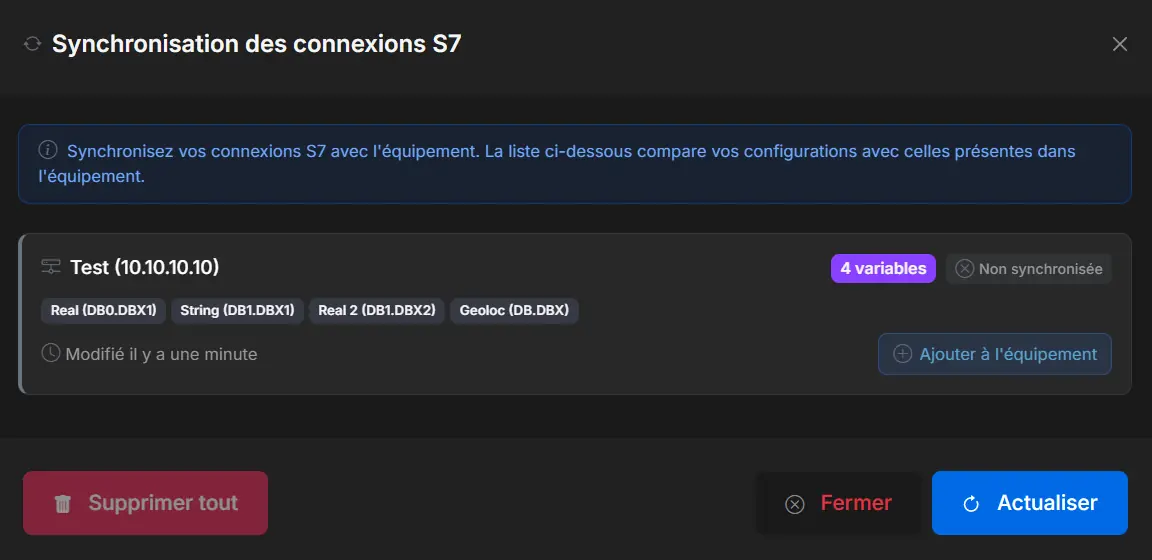
Synchronize with Equipment
After configuring your variables:
- Click on "Synchronize"
- Configuration is sent to equipment
- Reading starts automatically
View Values
S7 variable values are visible:
- In the S7 Log tab for detailed display
- On the dashboard (if configured)
- In analysis charts (if history enabled)
Troubleshooting
Connection fails
Check:
- Controller IP address
- Rack and slot are correct
- Controller allows external connections (S7 security settings)
- Firewall doesn't block port 102
Values are incorrect
Check:
- DB number is correct
- Offset matches variable position
- Data type is correct
Variables not read
Check:
- S7 module is enabled in settings
- Equipment is online
- Synchronization was performed
Tip
Use TIA Portal or Step 7 software to verify exact addresses of your variables in the Siemens controller.